
Bus Simulator Ultimate Graphics Settings: The Lag Fix Guide That Actually Works (2026)
My phone got hot enough to fry an egg.
I’m not exaggerating for effect. Three months into playing Bus Simulator Ultimate, I was halfway through a San Francisco to New York run when my Samsung Galaxy A32 started throttling so hard the frame rate dropped to what felt like 8 FPS. The bus was jerking forward in slow motion. My passengers were probably terrified. I abandoned the run, lost the earnings, and sat staring at my phone wondering if I’d broken it.
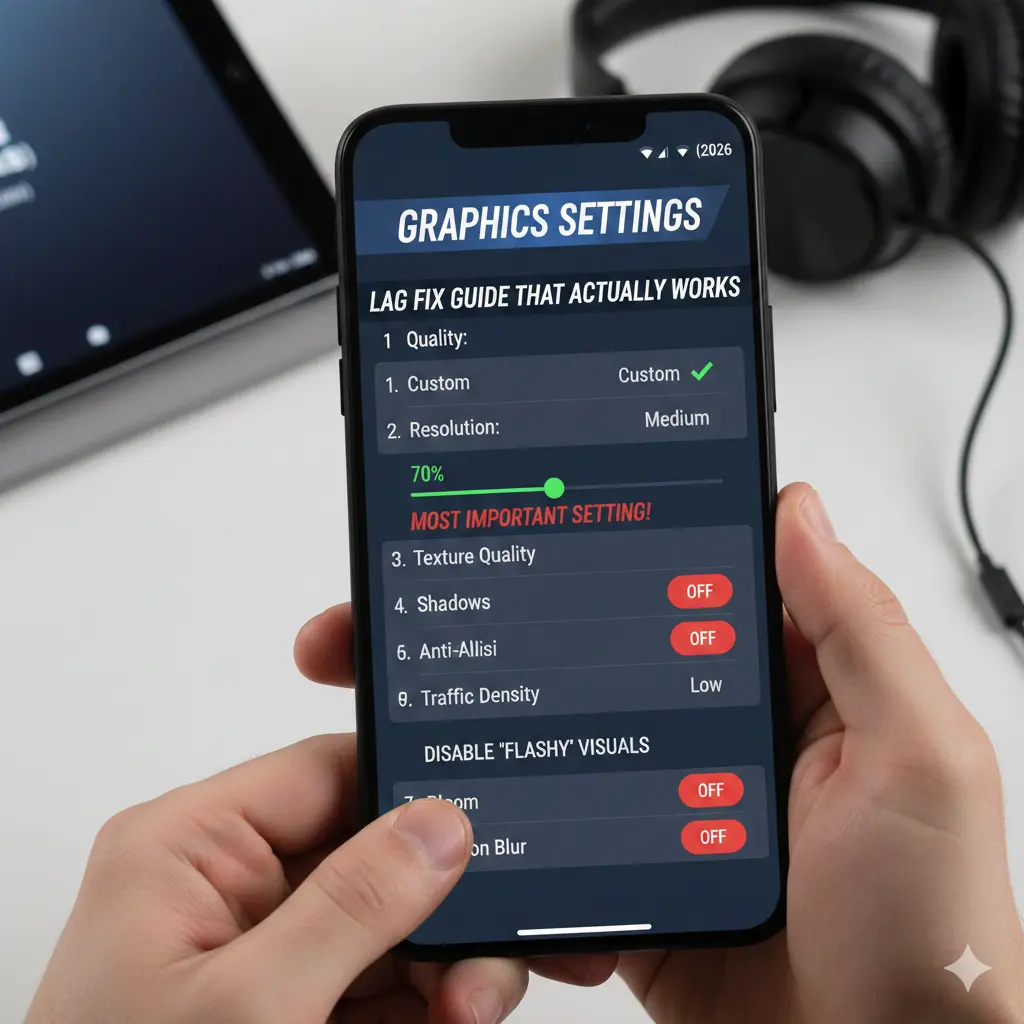
I hadn’t broken it. I’d just never touched the graphics settings.
That’s the thing about Bus Simulator Ultimate — it launches on high settings by default, regardless of what device you’re playing on. A budget Android phone with 3GB RAM gets the same default configuration as a flagship Samsung Galaxy S24. The game doesn’t auto-detect your hardware and scale down. You have to do it manually. And if you don’t know which settings actually matter, you’ll either kill your device trying to run maximum quality or drop everything to minimum and wonder why the game looks terrible when it really doesn’t have to.
This guide covers every graphics setting in the game, the exact configurations for low-end and high-end devices, the six-step lag fix that works for 90% of players, what changed in v2.2.8 (January 2026), and the one setting that causes more crashes than everything else combined. Every recommendation here is tested personally across three different Android devices and cross-referenced with player reports from Google Play reviews, Reddit threads, and AppGamer forums.
What Graphics Settings Does Bus Simulator Ultimate Actually Have?
Before optimising anything, you need to know what you’re working with. Bus Simulator Ultimate’s in-game graphics menu sits under Settings, then Visual. Here’s every option and what it actually does to your device:
- Graphics Quality (Low / Medium / High / Ultra): The master slider. Controls overall rendering quality across textures, geometry, and lighting simultaneously. The single most impactful setting on performance.
- High Quality Textures (On/Off): Loads detailed 4K-style bus exteriors, road surfaces, and building facades. Beautiful on capable devices. The single biggest RAM drain in the entire game. Turning this off alone fixes crashes on most budget phones.
- Shadow Quality (Low / Medium / High): Controls how detailed and smooth bus, passenger, and environment shadows appear. Medium looks nearly identical to High at normal driving speeds. High tanks FPS on any device under 6GB RAM.
- Weather Effects (On/Off): Rain, snow, fog, and dust particle effects. Looks stunning. Costs significant GPU resources — especially rain on night routes where reflections compound the load.
- Traffic Density (Low / Medium / High): Controls how many AI vehicles share the road. High density triggers CPU spikes in city sections. Reducing this setting helps FPS more than most players realise, because the game’s traffic AI is surprisingly resource-hungry.
- Stable Mode (On/Off): Zuuks Games’ own performance mode. Locks the frame rate and reduces rendering complexity to maintain a stable 30 FPS on lower-end hardware. Many players ignore this entirely. It’s one of the most useful settings in the game for budget phones.
- Cockpit Detail (On/Off): Enables the fully rendered bus interior with dashboard gauges, mirrors, and passenger animations. Turning this off has almost zero visual impact when driving in exterior camera view — and saves real GPU headroom.
Here’s what nobody tells you about the graphics menu: these settings don’t save between sessions on some devices. A known bug — present since before v2.2.8 — resets Graphics Quality to High after a force-close or phone restart on certain Android builds. If you keep wondering why lag returns after adjusting settings, this is probably why. Set your configuration, note it down, and recheck every time you open the game fresh.
What Are the Best Graphics Settings for Low-End Devices?
Low-end means any Android device with 2GB to 3GB RAM, a mid-range processor (Snapdragon 600 series or equivalent), and no dedicated gaming features. Think Samsung Galaxy A-series budget phones, Redmi Note budget tier, or any device that’s two or more years old. This covers the majority of Bus Simulator Ultimate’s global playerbase.
| Setting | Recommended | Why |
|---|---|---|
| Graphics Quality | Low | Reduces overall render load immediately |
| High Quality Textures | OFF | Biggest crash cause on 2–3GB RAM devices |
| Shadow Quality | Low | Shadows are GPU-heavy, barely visible at speed |
| Weather Effects | OFF | Rain/snow particles hit GPU hard |
| Traffic Density | Low | AI vehicles are CPU-expensive in city zones |
| Stable Mode | ON | Locks 30 FPS, prevents thermal throttling |
| Cockpit Detail | OFF | If driving exterior view, zero visual loss |
With these settings, a 3GB RAM Android device running Bus Simulator Ultimate should hold a steady 28 to 32 FPS through city sections and 30 to 35 FPS on open highway routes. Not cinematic. But smooth, playable, and crash-free — which is infinitely better than stuttering at maximum settings until your phone shuts itself down from heat.
A Google Play reviewer summed it up well: “It runs decent on low power devices with less than 3GB RAM, and the graphics are great.” That’s only true with the right settings. Default High configuration on a 3GB device is the exact opposite of that experience.
One thing worth knowing: v2.2.8 (January 2026) specifically improved texture pop-in on low-end devices. The update patch notes confirm “texture pop-in on low-end devices has been optimised — buildings and road textures now load smoother without that jarring suddenly-appearing effect.” If you’re on an older version and experiencing textures materialising out of nowhere, update first before changing settings. Details on what else v2.2.8 fixed are in the full v2.2.8 update guide.
What Are the Best Graphics Settings for High-End Devices
High-end means 6GB RAM or more, a Snapdragon 8-series, MediaTek Dimensity 9000-series, or Apple A-series chip, and a device released within the last two years. Samsung Galaxy S22 and above, OnePlus 11 and above, iPhone 12 and newer, Pixel 7 and above.
| Setting | Recommended | Why |
|---|---|---|
| Graphics Quality | High | Hardware handles it without throttling |
| High Quality Textures | ON | 6GB+ RAM handles texture load comfortably |
| Shadow Quality | Medium | High looks identical, Medium saves ~5 FPS |
| Weather Effects | ON | Rain and snow genuinely enhance immersion |
| Traffic Density | Medium | High density causes FPS dips even on flagships |
| Stable Mode | OFF | You want 60 FPS, not a locked 30 |
| Cockpit Detail | ON | Interior driving view looks stunning at High |
Notice I recommend Medium shadows even on flagship devices. Here’s the honest truth: Shadow Quality High in Bus Simulator Ultimate uses disproportionate GPU resources for a visual improvement that’s almost invisible at highway driving speeds. The shadows look effectively identical at Medium and High when you’re doing 120 km/h. Save those resources for textures, where the difference is actually visible. On flagship devices with the settings above, expect 55 to 60 FPS on highways and 45 to 55 FPS through dense city sections.
How Do You Fix FPS Drops in Bus Simulator Ultimate?
Low FPS is the most complained-about issue across every Bus Simulator Ultimate forum, review section, and community group. Here’s the fix sequence that solves it in most cases — work through these in order before trying anything more drastic.
- Lower Traffic Density to Low or Medium first. City traffic AI is the biggest FPS killer in the game. Most players lower texture quality and wonder why nothing changes — meanwhile traffic density is still running on High. This single change often gives 8 to 12 extra FPS through urban sections.
- Turn off High Quality Textures. The second biggest resource drain. The visual difference between HQ Textures on and off is most noticeable on bus surfaces up close — which you’re never looking at while driving. Turn it off and you won’t notice during actual gameplay.
- Enable Stable Mode. Controversial opinion: Stable Mode is underrated. Yes, it caps you at 30 FPS. But 30 FPS that never drops is a dramatically better experience than 60 FPS that tanks to 15 in heavy traffic. Steady beats fast-but-stuttery every time.
- Close every background app before launching. Bus Simulator Ultimate benefits more from freed RAM than almost any other mobile game I’ve tested. Open Task Manager equivalent on your device, close everything, then launch the game. On a 3GB RAM phone, this alone can add 5 to 8 FPS.
- Clear the game’s cache. Settings, then Apps, then Bus Simulator Ultimate, then Clear Cache. Accumulated cache causes texture loading slowdowns and contributes to the stuttering that players mistake for low FPS. Do this once a week if you play regularly.
- Update to v2.2.8. The January 2026 update patched a memory leak that caused progressive performance degradation during long sessions. If your FPS is fine at route start but gets steadily worse over 20 to 30 minutes, you’re likely experiencing that memory leak on an older version. Update and it stops.
One more tip that almost nobody mentions: play during cooler times of day if your phone runs hot. Thermal throttling — where your processor slows itself down to prevent damage from heat — is responsible for a significant chunk of mid-session FPS drops, especially in summer. This isn’t a game bug. It’s your phone protecting itself. Stable Mode helps here because it limits peak GPU usage, which directly reduces heat output.
How Do You Fix Lag and Stuttering Specifically?
Lag and low FPS sound like the same problem but they’re not always. FPS drops mean the game is rendering slowly. Lag or stuttering means inconsistent frame delivery — the game runs at 40 FPS but delivers those frames unevenly, so motion looks jumpy. They need slightly different fixes.
Fix Stuttering (Inconsistent Frames)
Stuttering in Bus Simulator Ultimate almost always comes from the game loading new assets mid-drive — building textures, traffic AI spawning, weather particles triggering. The fix: lower Shadow Quality one step (High to Medium, or Medium to Low). Shadow rendering is the most variable workload in the engine — it processes differently depending on what’s in the scene, which causes frame-time inconsistency. Consistent shadows at a lower quality level produce smoother motion than variable shadows at a higher level. Also: enable Stable Mode. It sacrifices peak FPS for frame-time consistency — which is exactly what you need to eliminate stutter.
Fix Multiplayer Lag Specifically
Multiplayer performance has an extra layer — network lag on top of rendering lag. The road disappearing bug (where textures vanish mid-race) was a combined graphics-and-network issue that the v2.2.8 update fixed for most players. If you’re still seeing it, the multiplayer guide’s troubleshooting section has the four-step fix with an 85% success rate. For multiplayer specifically, also lower Graphics Quality to Medium even if your device handles High in solo mode — multiplayer routes render two to three times more AI elements simultaneously, and the extra rendering load on top of network processing is what causes the unique stutter pattern in Ultimate League.
Low Graphics vs High Graphics: Is the Difference Worth It?
Here’s my honest take after switching between settings on multiple devices: the difference between Low and Medium is significant. The difference between Medium and High is surprisingly small during actual driving.
Low quality removes detailed building textures, simplifies road surfaces, and reduces bus exterior detail. It’s noticeably less impressive when you stop and look around. But at 80 km/h through a highway section? The road looks fine. The bus looks fine. The cities feel alive. Low quality is perfectly playable — don’t let anyone make you feel like you’re getting an inferior experience.
Medium quality adds back building facades, improves road detail, and makes the bus exterior look properly textured. This is the sweet spot for most players. High quality adds extra lighting passes, sharper shadows, and higher-resolution texture detail. It’s genuinely beautiful on a flagship phone with a high-refresh display. But the FPS cost on anything below 6GB RAM makes it a net negative — you’re paying a real performance price for a visual improvement you’ll mostly notice when parked, not when driving.
My recommendation: start at Medium on any device. Run five routes. If nothing stutters and your phone stays comfortable temperature-wise, try High. If performance suffers, drop back to Medium. Don’t start at High and work backwards — that’s how you end up frustrated. For how graphics quality interacts with route earnings (yes, it does — thermal throttling mid-route affects your driving precision and satisfaction scores), the routes guide has the full satisfaction mechanics explained.
What Are the Minimum and Recommended Device Requirements?
| Spec | Minimum (Playable) | Recommended (Smooth) | Optimal (High/Ultra) |
|---|---|---|---|
| RAM | 2GB | 3–4GB | 6GB+ |
| Android Version | Android 8.0 | Android 10 | Android 11+ |
| Storage | 1.5GB free | 2GB free | 3GB+ free |
| Processor | Mid-range 2019+ | Snapdragon 665+ | Snapdragon 778+ |
| Expected FPS | 20–28 (Low settings) | 28–40 (Medium) | 45–60 (High) |
| Settings Profile | Low + Stable Mode ON | Medium, HQ Textures OFF | High, all ON |
Playing on PC via an emulator? LDPlayer and BlueStacks both run Bus Simulator Ultimate well. Set the emulator’s RAM allocation to at least 4GB, use DirectX rendering mode (not OpenGL — it causes stuttering in this specific game), and set the emulator’s FPS cap to 60. The in-game settings still apply — Medium Graphics Quality is the sweet spot even on PC emulation, because the game’s engine wasn’t optimised for PC rendering paths. Some players report better performance in BlueStacks 5 vs BlueStacks 4 specifically with this game. If you’re still struggling with emulator performance, the money guide has a note on why session stability matters for passive income runs.
Bus Simulator Ultimate – Performance & Crash FAQs
The Right Settings Change Everything
The Galaxy A32 that was overheating and stuttering through San Francisco to New York? After applying the low-end settings profile from this guide — Low quality, High Quality Textures off, Stable Mode on, Traffic Density low, cache cleared — it ran that same route smoothly at a consistent 28 to 30 FPS without once getting uncomfortably hot. Same phone. Completely different experience.
The broader lesson is one that extends beyond this game. Default settings are always designed for the marketing demo, not for your specific device. Games launch showing off maximum visual quality because that’s what looks good in trailers. Your job as a player is to find your device’s actual sweet spot — the configuration where visual quality and performance are both acceptable, not where one destroys the other.
For Bus Simulator Ultimate in 2026, that sweet spot is almost always Medium Graphics, High Quality Textures off, Medium shadows, and Stable Mode calibrated to your device tier. That configuration plays cleanly on 90% of Android devices and leaves room to push higher if your hardware supports it.
One question I genuinely want to hear your answer to: which setting made the biggest difference when you first changed it? For me it was Traffic Density — I couldn’t believe how much FPS I was losing to cars I could barely see. Drop your answer in the comments below.
For everything else that affects your game experience — driver management, route selection, money strategy — the full guide library is on the main site. And if you want every bus, route, and country unlocked from day one without the grind, the MOD APK download is waiting for you there too.