
Bus Simulator Ultimate Save Data and Cloud Sync Guide
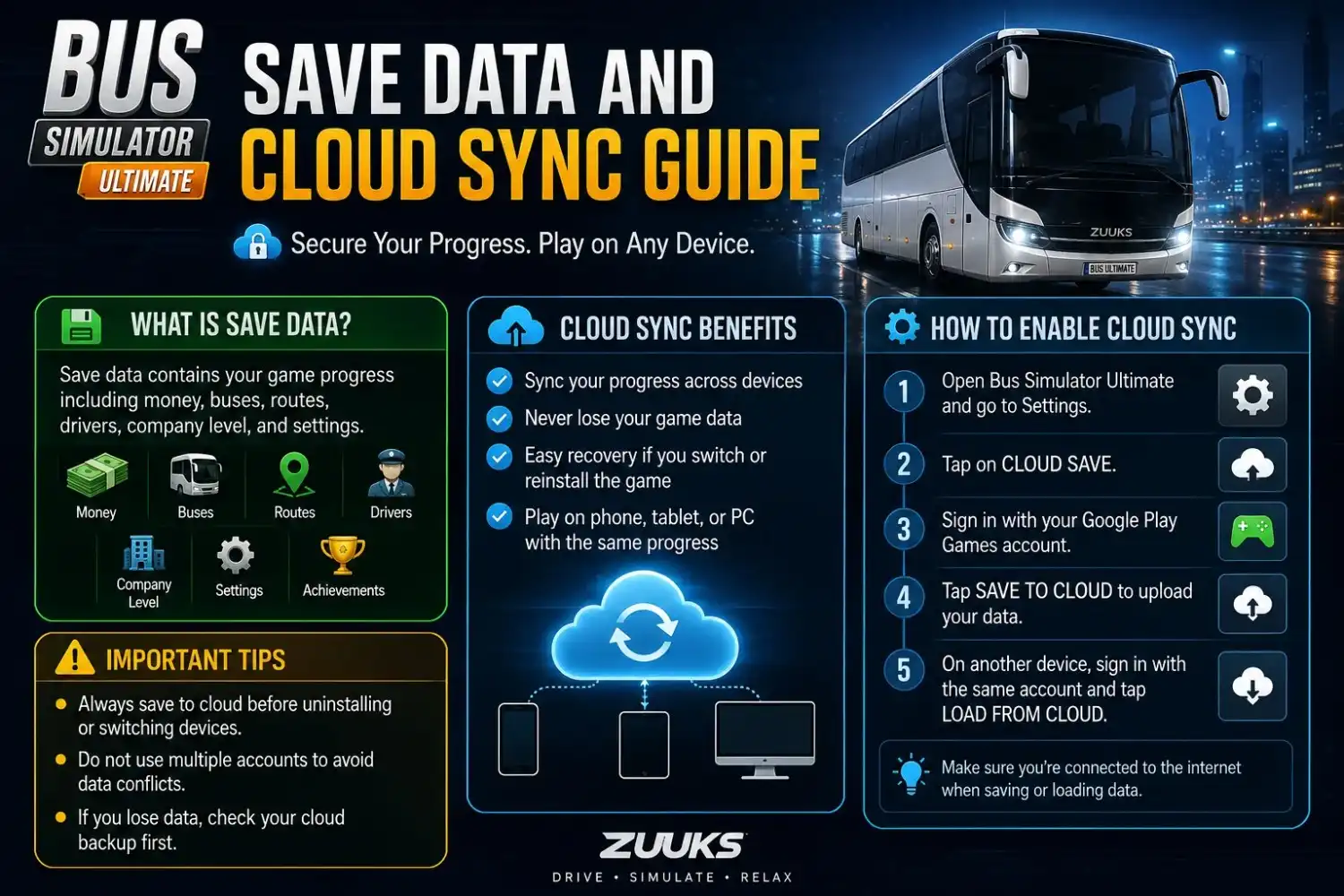
Losing hundreds of hours of progress because a phone got wiped, replaced, or reset is one of the most preventable disasters in Bus Simulator Ultimate, and one of the most common. Your fleet, your unlocked countries, and your hired drivers all live in a save file that either syncs to the cloud or does not, and most players never check which one is happening until it is too late.
This guide covers exactly how bus simulator ultimate save data works, how to set up cloud sync properly, how to move to a new device without losing anything, and what to do if something goes wrong along the way.
Bus Simulator Ultimate saves progress locally on your device by default, and only backs up to the cloud once you sign in with Google Play Games on Android or Game Center on iOS. Without that sign in, uninstalling the app or switching devices permanently deletes your save.
Get Everything Unlocked, Download MOD APK
How Bus Simulator Ultimate Save Data Works
The game keeps a local save on your device that updates automatically as you play, so you never need to manually save your progress during a session. That local save is what the game reads from every time you open it on that specific device.
Cloud sync is a separate layer on top of that local save. Once you sign in with a Google Play Games account on Android, or a Game Center account on iOS, the game periodically uploads your save to that account. This is what makes it possible to reinstall the game, switch to a new phone, or recover your progress after a factory reset. Without signing in, your progress exists only on that one device, in that one installation of the app.
Before you assume you are covered: cloud sync is not automatic. It requires an explicit sign in step during setup that is easy to skip without noticing.
Setting Up Cloud Sync for the First Time
Getting this done in your first session is the single easiest way to avoid ever dealing with lost progress later.
- Open the game’s settings menu, usually accessible from the main menu.
- Look for an account or sync option, typically labeled Google Play Games on Android or Game Center on iOS.
- Sign in with your existing account, or create one if you do not already have one on that platform.
- Grant the game permission to access and back up your save data when prompted.
- Confirm the sync completed by checking for a signed in status or a successful sync message in the same settings area.
Switching Devices Without Losing Progress
Moving to a new phone is where most lost saves actually happen, and it is almost always avoidable by following the steps in order rather than removing the old device first.
Before You Remove the Old Device
- Open the settings menu and confirm cloud sync is active and signed in.
- Give the game a moment to complete a sync, generally triggered automatically after gameplay or available as a manual option in the sync menu.
- Let the app sit open for a few minutes to make sure the sync has time to finish before touching anything else.
Setting Up the New Device
- Install the game on your new device from the Play Store or App Store.
- Sign in with the same Google Play Games or Game Center account you used on the old device.
- The game should detect your existing save and offer to restore it. Confirm the restore rather than starting a new company.
Do not uninstall the old device’s app or reset the device before confirming the sync actually completed. If you have any doubt, wait and check again rather than assuming it worked.
What Happens If Sync Fails
Not signed in. If you never completed the account sign in step, there is no cloud save to restore from, regardless of how much progress you made locally. This is the most common cause of a failed restore, and there is no fix after the fact if the original device and its local save are already gone.
Conflicting saves. If you signed into the same account on two devices and played on both before syncing properly, the game may present a choice between two different save states. Picking the wrong one can overwrite progress you wanted to keep, so check which save has more hours, more countries unlocked, or a higher coin balance before confirming.
Sync stuck or not completing. A sync that never finishes is usually a connectivity issue rather than save corruption. Confirming a stable internet connection, fully closing and reopening the app, and checking that you are still signed into the correct account are reasonable first steps before assuming the save itself is damaged.
Can You Transfer Between Android and iOS?
No, progress generally cannot move between Android and iOS. Google Play Games and Game Center are separate systems tied to their own platforms, and a save synced through one does not carry over to the other. If you are switching from an Android phone to an iPhone, or the reverse, expect to start a new company on the new platform rather than continuing your existing one.
What You Lose If You Skip Sync Entirely
Everything. If cloud sync was never set up and the device is lost, damaged, factory reset, or simply has the app uninstalled, the save goes with it. There is no separate backup, no support ticket that recovers an unsynced save, and no way to reconstruct hours of route progress, unlocked countries, or a hired driver roster after the fact.
This is not a rare edge case. It is the default outcome for anyone who never completed the sign in step, which is exactly why setting it up early matters more than almost anything else in this guide.
Frequently Asked Questions
Q: Can I have two separate saves on two devices?
Yes. If you sign into different accounts on each device, or never sync at all, the two installations will track separate progress independently. This only becomes a problem if you actually want them to be the same save, since signing into the same account on both devices without careful syncing is what causes the conflicting save issue described above.
Q: Does MOD APK progress sync the same way as the official version?
Cloud sync behavior generally depends on whether the installed build supports the same account sign in flow as the official release. Since MOD APK versions already start with everything unlocked, cloud sync matters less for progress preservation in that context, but it is still worth checking whether sign in is available if you want a backup in case you reinstall.
Q: What if my two devices show different progress after signing in?
This is the conflicting save scenario covered above. The game will typically prompt you to choose which save to keep, and that choice is usually final, so compare total playtime, coin balance, and unlocked countries across both before confirming rather than picking automatically.
Final Take
Cloud sync through Zuuks Games’ account system is the only real safeguard against losing your company entirely, and it takes only a couple of minutes to set up correctly. Do it early, confirm it is active before ever switching or resetting a device, and you avoid the single most common way players lose everything they have built.
For everything to do once your save is safely backed up, from your first bus purchase to your first hired driver, the beginner guide covers the full progression path, and the career mode guide covers objectives and progression in depth.